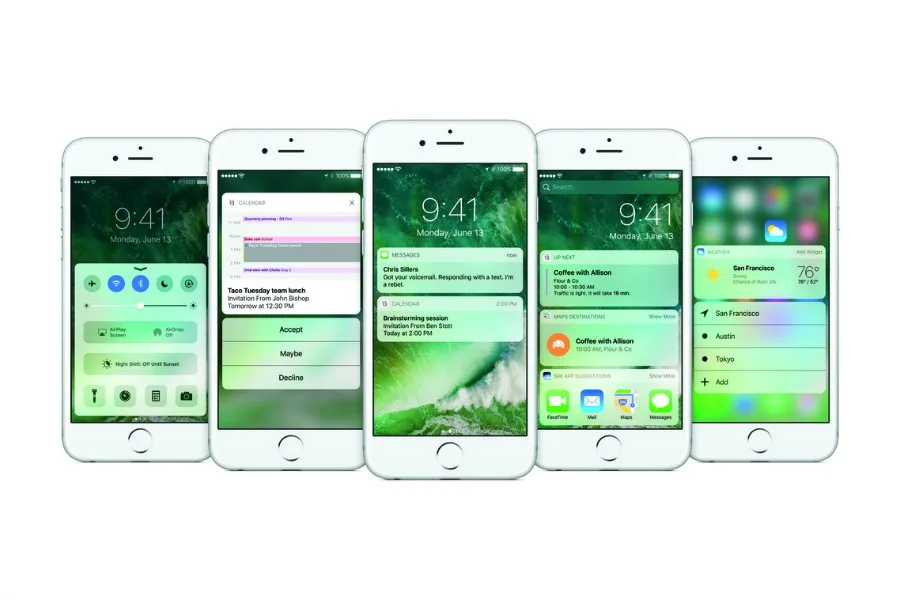
Back when iOS 10 hit and the iPhone 7 launched, we mentioned the Favorites widget which you will find on your iPhone when you swipe right from your home page or locked screen.
Found it yet? Okay, good.
Turns out, it’s one of our most favorite iPhone features, because you can customize it with everything you need to get to quickly on your iPhone. If you haven’t been using it yet, or didn’t realize you could actually customize it, here’s how.
Related: 3 smart iPhone tricks for when you’re too busy to answer a call
How to customize your iPhone Favorites widget
1. Scroll all the way to the bottom of the screen and click Edit.
2. Decide what you want to remove by clicking the red button.
3. Decide what you want to add by clicking the green button. (Am I the only one who can never find the Cartwheel app on my phone? Adding it now!).
4. Change order by holding down the 3 lines (see top), then dragging and dropping them.
That’s it!
Related: 8 smart ways make your iPhone less distracting, without turning off your phone
You can get everything from what’s up next, your day’s calendar, travel times and nearby traffic (love those!), as well as quick access to the Kindle app, your Weather app, and more. It’s such a timesaver to have it all right on your home screen rather than clicking around to the different apps. Plus, it saves you from having to open up your phone, which if you’re like me, can be pretty distracting when all I wanted to do was just check the weather.


Leave a Reply