The quickest, easiest way to share photos and videos on your iPhone that you aren't using. Until now.
This situation probably sounds all too familiar to you: You're at your kid's basketball game or a family birthday party and your mom or your brother sitting next to you asks you to send them some iPhone photos and videos you're taking, w…
May 17, 2016•2 min read
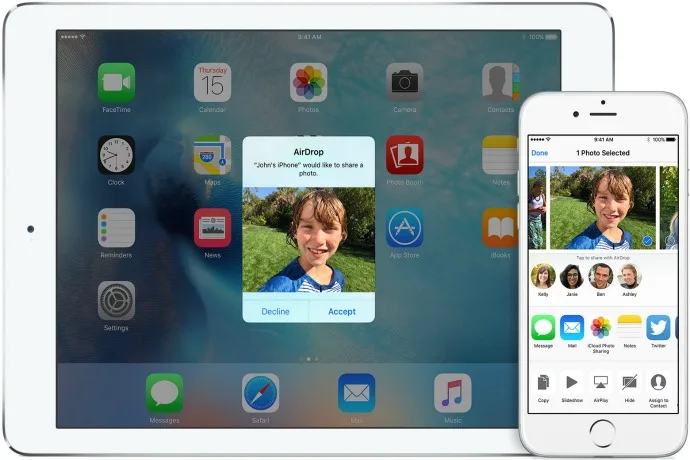
This situation probably sounds all too familiar to you: You're at your kid's basketball game or a family birthday party and your mom or your brother sitting next to you asks you to send them some iPhone photos and videos you're taking, which you do via text, and then you spend the rest of the game or the party waiting for all the files to actually send.
Well, I'm about to make you a very happy person by introducing you to AirDrop, a super cool iOS feature that tons of people don't know about.
Put simply, AirDrop lets you easily share photos and videos with anyone nearby who's got an Apple device. In just a click, you can get all those action shots and present-opening videos to your friends and family near you (as in, right physically near you, not in the town over). But still, awesome, right?
Now, if you've got an iPhone, iPad, or iPod Touch with iOS 7 or later, or a Mac with OS X Yosemite or later, you're good to go. Then make sure your WIFI and Bluetooth are on, and that you're logged into your iCloud account.
Related: 5 smart reasons you should be using Facetime Audio
Once you've got all that done, here's how it works:1. Turn on AirDrop
Just swipe up to get to your Control Center, then tap AirDrop and choose your preferences.2. Choose what and with whom you want to share
Head over to your photo gallery and search for photos or video that you're looking to share using AirDrop and tap "Share." The great part is that you can choose lots, not just one photo at a time. Then decide who you want to share with (Hint: Make sure they've got AirDrop turned on on their device).3. That's it!
The folks you picked will get an alert asking if they'd like to receive what you're sharing. If they do, then they'll click "Accept" and everything you shared will be on their gadget.Note: This is imported sample content. Original source.