How to enable and schedule Night Shift on your iPad or iPhone
As someone who has a bad habit of laying in bed at night and checking her iPhone, the Night Shift feature in iOS 9.3 is a lifesaver. Or really, a sleep saver. Yes, those bright LCD screens aren't great for helping you fall asleep. So, if…
July 27, 2016•1 min read
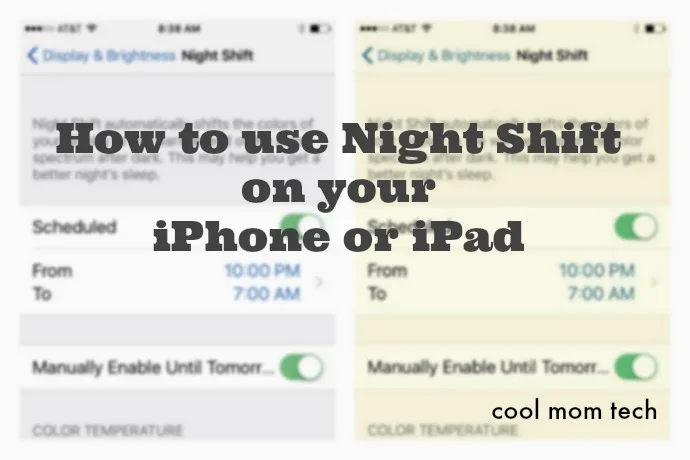
As someone who has a bad habit of laying in bed at night and checking her iPhone, the Night Shift feature in iOS 9.3 is a lifesaver. Or really, a sleep saver. Yes, those bright LCD screens aren't great for helping you fall asleep. So, if you're like me and like to check your iPhone before bed, here's how to enable and schedule Night Shift on your iPad or iPhone.
Related: 8 smart ways to use your iPhone Control Center to make life easier
1. Go to Settings > Display & Brightness > Night Shift 2. To manually turn on Night Shift, just tap the "Manually Enable" button and it will be turned on until the next day. 3. To schedule Night Shift, tap on the scheduled button and set the time. 4. Then, set your color temperature, noting that the warmer you go, the more it might affect the appearance of some onscreen motion.Related: 8 ways to make your iPhone less distracting without turning it off
And, that's it! Now you can binge watch er, um, read before you fall asleep without worrying that you might be kept awake longer due to your bright screen.Note: This is imported sample content. Original source.