How to use the iOS 8 audio message feature: It’s like it was made for parents.

Hold the phone! No, seriously. Hold the iPhone, because there’s something new(ish) and neat and cool happening with its Message app that you’ll definitely want to hear about if you haven’t yet. While this fun feature has been around since September, when iOS 8 launched, I’m guessing this will come as news to…

BY

·

iOS 8 Messages app audio message

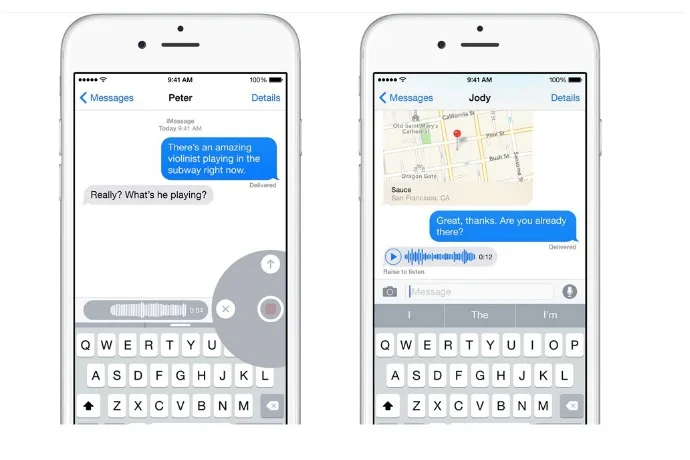
Hold the phone! No, seriously. Hold the iPhone, because there’s something new(ish) and neat and cool happening with its Message app that you’ll definitely want to hear about if you haven’t yet. While this fun feature has been around since September, when iOS 8 launched, I’m guessing this will come as news to some of you on-the-go parents, too.

The deal is, you can send short audio messages — your voice, a song clip, the baby giggling uncontrollably — with a simple touch, hold and swipe.

It’s almost like turning your phone into a walkie talkie, without taking the time to dial, waiting for voicemail to pick up, then leaving a message after the beep.

Imagine how lovely it is to get one of those from the kids when you’re on a business trip, or to send a group chorus of happy birthday to the grandparents without having to go through the effort of checking voicemail.


Here’s how to do it:

  1. Launch the Messages app
  2. Tap the new message icon (top right)
  3. Tap on the + button to add a contact (other iPhone users only)
  4. SEND button automatically changes to a microphone icon
  5. Touch and hold on the microphone button to record your audio message
  6. Swipe up to the arrow or tap it to send

You can opt to playback your message before sending it by tapping the play icon. Or…delete it. Because sometimes you find yourself recording yourself accidentally (confesses our editor Liz).

Adding more cool to mix? The message can self-destruct (or, uh, just expire and quietly disappear) automatically two minutes after you listen to it, kind of like an audio version of Snapchat. Or adjust that setting too by going to:

Settings > Tap Messages > Tap Expire under Audio Messages > Choose Never or After 2 Minutes. 

Bear in mind, audio message can take up lots of data space compared with your regular text messages, so think twice about holding on to too many of those vocal clips. The last thing I need is one more iPhone memory-suck that goes the way of so many parents’ smartphone photo deleting habits. Or lack thereof.


One response to “How to use the iOS 8 audio message feature: It’s like it was made for parents.”

  1. I love this feature-we use it all the time with my two year old so she can hear us (and vice versa) when one parent is away. So cool!

Leave a Reply

Your email address will not be published. Required fields are marked *

Shop Related Gift Guides

Expertly tested, editor-approved picks.

View All (opens in new tab)
Wooden toys flatlay

Heirloom Wooden Toys

Shop Guide (opens in new tab)
Skincare products flatlay

The Self-Care Edit

Shop Guide (opens in new tab)
Mom and child reading

The New Mama Edit

Shop Guide (opens in new tab)

Sophistication in your inbox.

Weekly curated gift finds

Mom-tested favorites

Holiday exclusives

No spam. Ever.